Create Cinematic AI Music Videos of Yourself Using ChatGPT + Google Flow
Imagine becoming the main character of your favourite song. Instead of creating random AI videos, you can recreate the story of any song with yourself playing every scene. The entire workflow can be done using AI, and you don't need any…
Imagine becoming the main character of your favourite song. Instead of creating random AI videos, you can recreate the story of any song with yourself playing every scene. The entire workflow can be done using AI, and you don't need any editing or filmmaking experience.
This is the exact workflow I used.
What You'll Need
- ChatGPT (for storyboard, images, and prompts)
- Google Flow (to animate the images into videos)
- Edits App (or any video editor)
- Your own photos (5–15 images from different angles)
Tip: Upload multiple photos of yourself taken from different angles. This helps ChatGPT maintain facial consistency across every scene.
Step 1 — Choose Any Song
Pick any song that tells a story.
Examples:
- You Belong With Me
- Perfect
- Until I Found You
- Yellow
- Night Changes
Songs that contain storytelling work the best because each lyric naturally becomes a scene.
Step 2 — Generate a Storyboard
Copy the lyrics into ChatGPT.
Upload multiple photos of yourself.
Ask ChatGPT to:
- analyse the lyrics
- break the song into scenes
- use you as the main character
- create a storyboard
- mention which lyric belongs to which scene
Prompt you can use :
Create a storyboard using this character for which I have uploaded multiple images(so that you can read the exact face from different angles and create the accurate image for the different scenes for this song. "…Add the song lyrics here…." While creating the storyboard, for each of the scenes, put a number and also add the lyrics for which that scene has been created and that image.
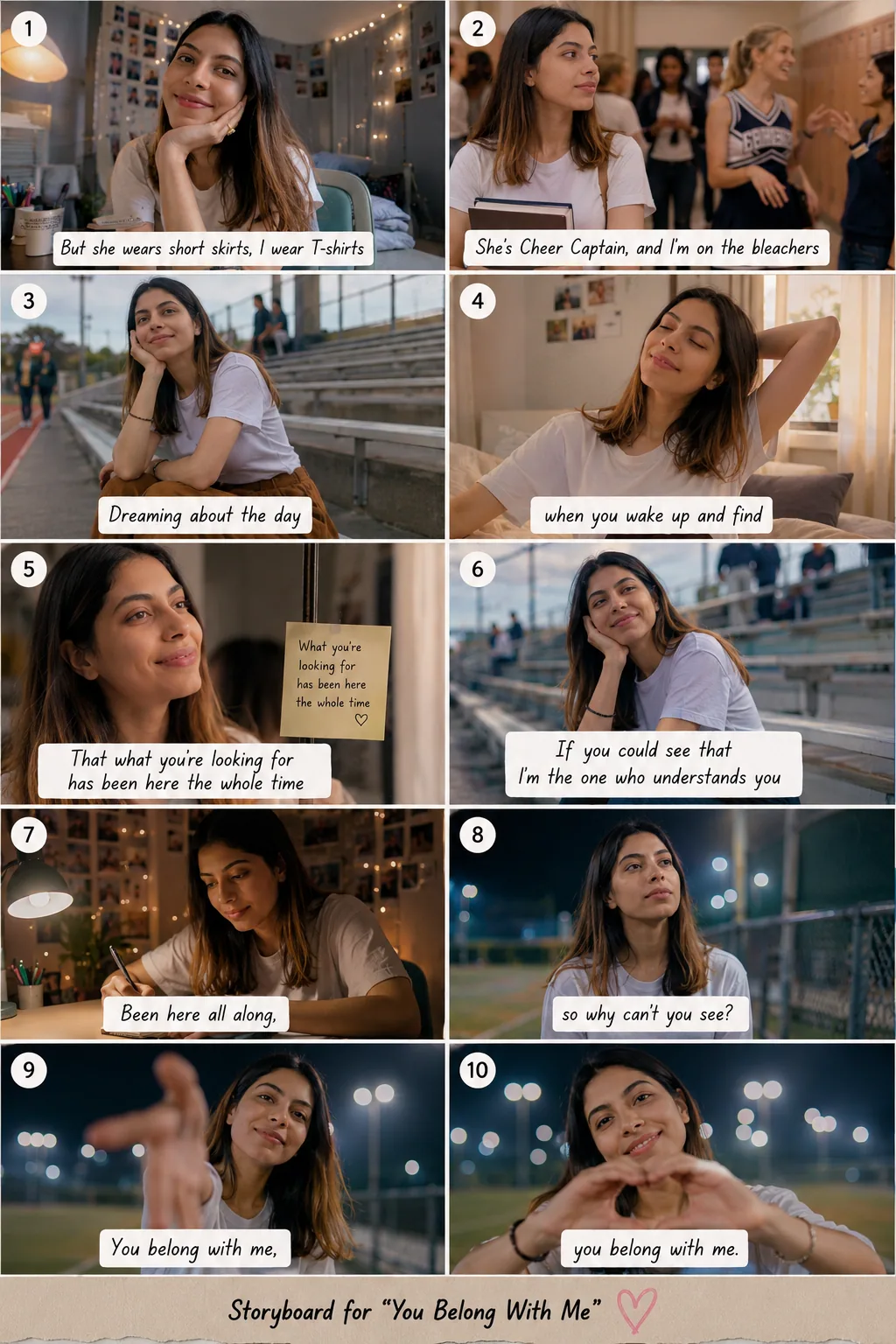
Step 3 — Generate One Image Per Scene
Once the storyboard is ready, ask ChatGPT to generate each scene as an individual image. Sometimes ChatGPT does not create the accurate individual image from the storyboard. In that case, you can take a screenshot scene for each of the scenes from that storyboard and use the prompt below while creating the individual scene image.
Make this uploaded image a 9:16 aspect ratio and remove all kinds of text overlay over it, ensuring everything looks similar.
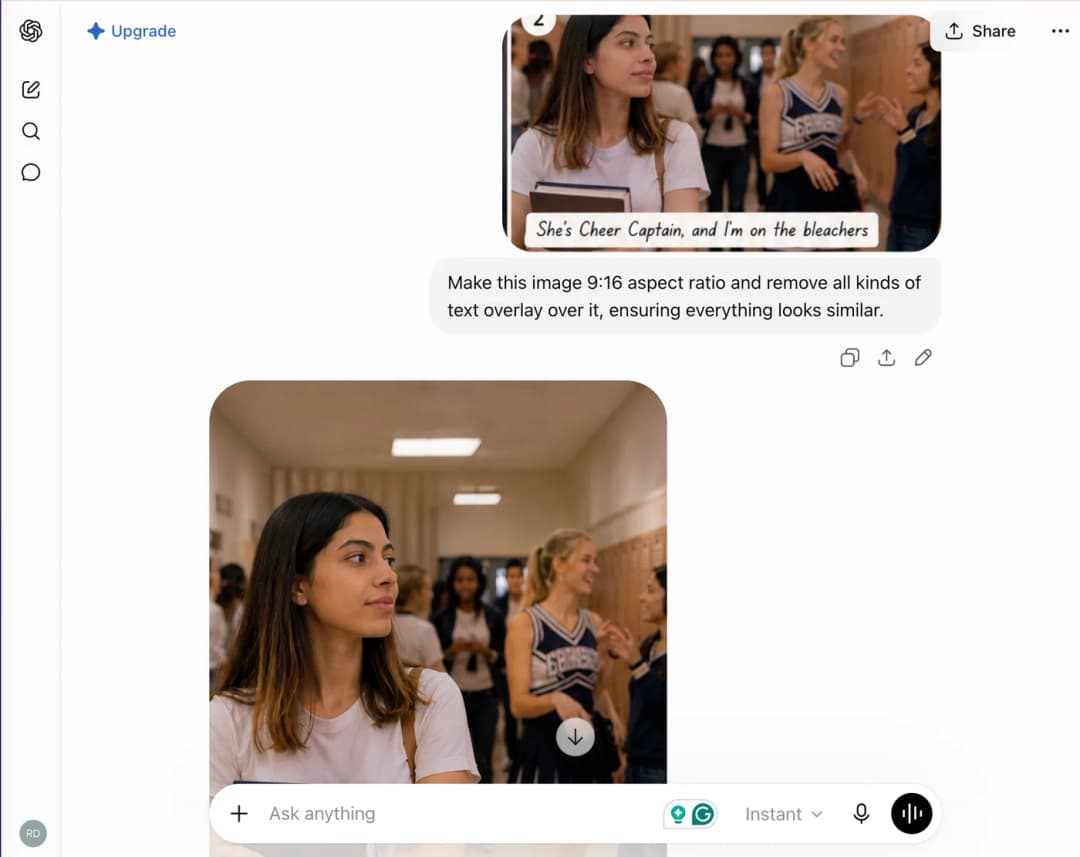
For every image:
- 9:16 aspect ratio
- cinematic lighting
- realistic photography
- same character
- same face
- no text
- no numbering
- no watermark
You'll end up with 10–20 individual images depending on your storyboard.
Step 4 — Download Every Image
Download every generated image separately.
Each image will later become a short cinematic video clip.
Step 5 — Generate Motion Prompts
Now ask ChatGPT:
Create Google Flow prompts for every storyboard scene.
The prompts should not regenerate the scene.
Instead, they should describe:
- facial expressions
- camera movement
- body movement
- environmental movement
Use the prompts below:
Now, the storyboard you have created: you know about the scenes. I want to create one small snippet for each of the scenes. Could you please help me with a prompt that is relevant for the exact scene, for the exact thing which we have created, which I can share with the Google Flow so that it can generate the 4-second clip on it? Ensuring the character and everything in the image remain consistent, we are just adding the motions as relevant for the scene. Do this thing for all the 10 scenes in a tabular format.
| Scene | Lyrics | Google Flow Prompt |
|---|---|---|
| 1 | But she wears short skirts, I wear T-shirts | The young woman sits in her cozy bedroom with her chin resting on her hand. She blinks naturally, gives a soft smile, slightly tilts her head, and gently taps her fingers against her cheek. Fairy lights softly twinkle in the background while a few loose strands of hair move subtly. Slow cinematic push-in toward her face. Duration: 4 seconds. |
| 2 | She's Cheer Captain, and I'm on the bleachers | The young woman walks slowly through the school hallway while holding her books close to her chest. She briefly glances toward the cheerful group talking nearby, then looks away with a thoughtful expression. Students casually walk in the background. Hair moves naturally as the camera slowly tracks beside her. Duration: 4 seconds. |
| 3 | Dreaming about the day | The young woman sits alone on the stadium bleachers with her cheek resting on her hand. She watches the field with a dreamy smile, blinks softly, slightly swings one foot, and gently exhales. A light breeze moves her hair while the camera slowly dollies closer. Duration: 4 seconds. |
| 4 | When you wake up and find | Morning bedroom scene. The young woman stretches gently with one hand behind her head, slowly opens her eyes, smiles peacefully, and takes a relaxed breath. Soft curtains sway in the breeze as warm sunlight fills the room. Camera slowly pushes inward. Duration: 4 seconds. |
| 5 | That what you're looking for has been here the whole time | The young woman stands near a window with a warm smile, looking at her reflection. She slowly shifts her gaze, lightly brushes a strand of hair behind her ear, and smiles with quiet confidence. The camera gently slides sideways while warm evening light illuminates her face. Duration: 4 seconds. |
| 6 | If you could see that I'm the one who understands you | The young woman sits on the bleachers with her cheek resting on her hand. She slowly lifts her eyes toward the field, smiles warmly, and gives a subtle nod as if understanding someone deeply. A soft breeze moves her hair while the camera slowly pushes closer. Duration: 4 seconds. |
| 7 | Been here all along | At her desk at night, the young woman writes slowly in her notebook, pauses, smiles to herself, then continues writing. Fairy lights softly flicker while the desk lamp creates warm lighting. Camera gently slides from left to right. Duration: 4 seconds. |
| 8 | So why can't you see? | Nighttime sports field. The young woman looks upward thoughtfully, blinks, then slowly lowers her gaze toward the camera with a hopeful expression. Stadium lights glow softly in the background while a gentle breeze moves her hair. Slow cinematic push-in. Duration: 4 seconds. |
| 9 | You belong with me | The young woman reaches her hand toward the camera, inviting the viewer to come closer. She smiles warmly, slightly leans forward, and extends her hand naturally. Hair moves softly in the breeze while the background lights remain beautifully blurred. Camera stays mostly static as the hand moves closer. Duration: 4 seconds. |
| 10 | You belong with me | The young woman smiles directly into the camera and forms a heart shape with both hands. She gently tilts her head, laughs softly, and holds the heart gesture steady while the stadium lights shimmer behind her. The camera slowly pushes in for an intimate cinematic ending. Duration: 4 seconds. |
Step 6 — Animate Everything in Google Flow
Open Google Flow.
Upload one image.
Paste the motion prompt generated by ChatGPT.
Generate the clip.
Repeat this process for every storyboard scene.
Each image becomes approximately a four-second cinematic video.
Good news: Google Flow currently gives you 50 free credits every day, which is usually enough to generate multiple clips daily without paying.

Step 7 — Repeat Until the Song Is Complete
Keep repeating:
- Upload image
- Paste prompt
- Generate
- Download
Soon you'll have every scene of your music video.
Step 8 — Combine Everything
Open the Edits app.
Import every generated clip.
Arrange them according to the storyboard.
Place the clips in the same order as the lyrics.
Add the original song.
Trim the clips if necessary.
Export your final video.
Congratulations!
You now have a cinematic AI music video where you are the main character.
Image Generation Options
There are multiple ways to generate the storyboard images.
Option 1 — ChatGPT
ChatGPT can generate highly consistent images directly from your uploaded reference photos.
This is the simplest workflow.
Option 2 — Nano Banana
If you prefer, you can also generate the storyboard images using Nano Banana. It works well for maintaining consistency across multiple scenes and is another good option for image generation.
Choose whichever image generator gives you the style you prefer.
Tips for Better Results
Upload 8–15 reference photos.
Include:
- front view
- left profile
- right profile
- smiling
- serious expression
- indoor lighting
- outdoor lighting
The more reference angles the AI has, the more consistent your character will remain throughout the storyboard.
Keep the same outfit throughout the storyboard if possible.
Consistency makes the final video feel like an actual movie instead of disconnected clips.
Generate all images before creating videos.
This allows you to review the entire story before spending any Google Flow credits.
Use subtle camera movements.
Avoid dramatic camera motions.
Small movements such as:
- slow push-in
- slow pan
- gentle dolly
- natural blinking
- hair moving in the wind
look much more cinematic.
Limit each clip to around four seconds.
Longer clips often become less consistent and are harder to synchronize with the song.
Final Workflow Summary
Pro Tip
The quality of your final video depends far more on the storyboard than on the animation. Spend time creating meaningful scenes that match the lyrics emotionally. Once the storyboard is strong, ChatGPT can generate consistent images, Google Flow can animate them naturally, and the Edits app can turn them into a polished music video. Instead of creating random AI visuals, you're directing your own short film—where you are the lead actor in your favourite song.